Creating Class Diagrams with Umbrello 5: Guide
Table of Contents
- Introduction to UML Class Diagrams
- Understanding Class Diagram Components
- Problem Statement: Credit Card System
- Installation and Setup
- Creating Your First Class Diagram
- Building the Class Structure
- Implementing Relationships
1. Introduction to UML Class Diagrams
What are Class Diagrams?
Class diagrams are the backbone of Object-Oriented modeling. They show:
- Static structure of a system
- Classes and their features
- Relationships between elements
- Inheritance hierarchies
- Multiplicity and navigation
Why Use Class Diagrams?
- Visualize class structures
- Plan application structure before coding
- Document existing systems
- Communicate designs between team members
- Model database schemas
2. Understanding Class Diagram Components
Classes
A class represents a template for objects and consists of:
- Name (top compartment)
- Attributes (middle compartment)
- Operations (bottom compartment)
Visibility Modifiers
+ Public: Accessible from any class
- Private: Only accessible within the class
# Protected: Accessible in class and its subclasses
~ Package: Accessible within the same package
Relationships Types
-
Association: Basic relationship between classes
- Unidirectional: One-way relationship
- Bidirectional: Two-way relationship
-
Aggregation: Weak "whole-part" relationship
- Parts can exist independently
- Shown with hollow diamond
-
Composition: Strong "whole-part" relationship
- Parts cannot exist without the whole
- Shown with filled diamond
-
Inheritance: "is-a" relationship
- Shown with hollow triangle
- Points to parent class
-
Implementation: Class implementing interface
- Shown with dashed line and hollow triangle
- Points to interface
Multiplicity
- 1: Exactly one
- *: Zero or more
- 1..*: One or more
- 0..1: Zero or one
- n: Specific number
- n..m: Range of numbers
3. Problem Statement: Credit Card System
System Overview
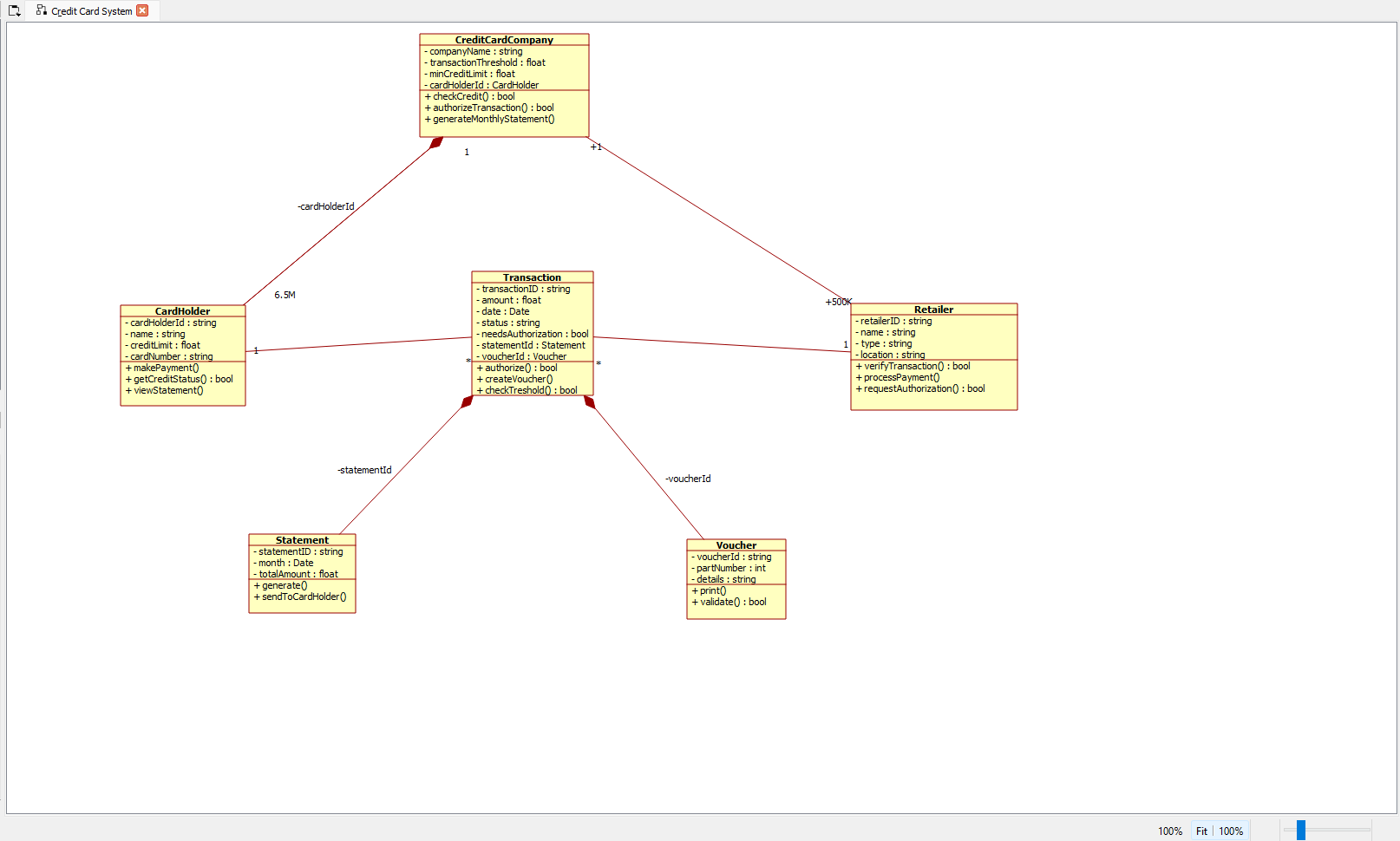
Creating a credit card management system that handles:
- 6.5 million cardholders
- 500,000 retailers
- Various retail types (hotels, shops, etc.)
- Transaction processing
- Statement generation
Key Requirements
-
Transaction Processing
- Validate transactions over $50
- Generate two-part vouchers
- Track transaction status
-
User Management
- Store cardholder information
- Manage retailer details
- Handle credit limits
-
Reporting
- Generate monthly statements
- Track transaction history
- Monitor credit usage
4. Installation and Setup
Prerequisites
- Linux/Windows operating system
- Umbrello 5 installed
- Basic understanding of UML concepts
- Familiarity with object-oriented programming
Environment Setup
- Launch Umbrello from terminal:
umbrello5
- Configure initial workspace:
- Maximize window for better visibility
- Arrange toolbars as needed
- Enable grid view for alignment (optional)
5. Creating Your First Class Diagram
Step 1: Create New Diagram
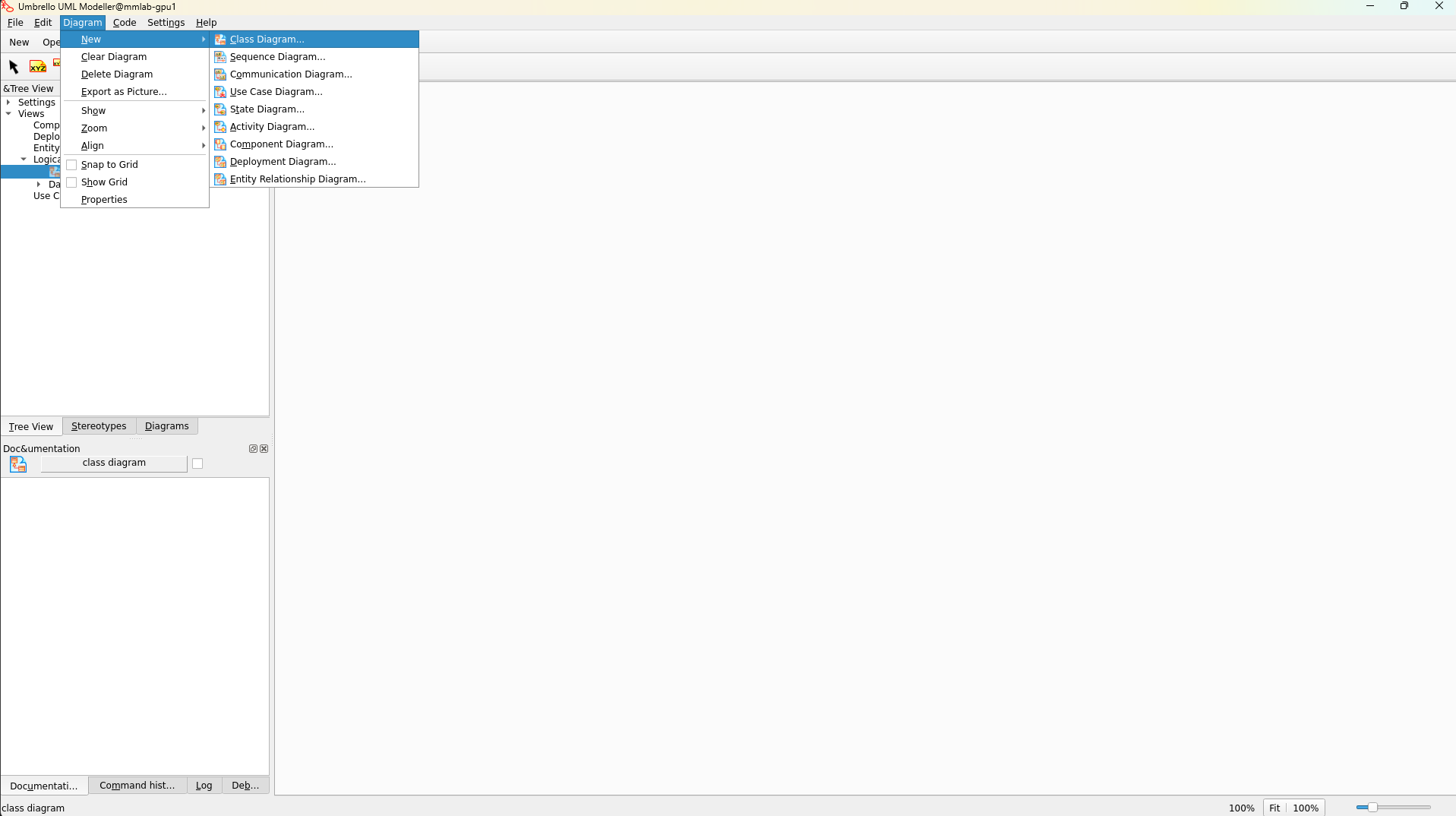
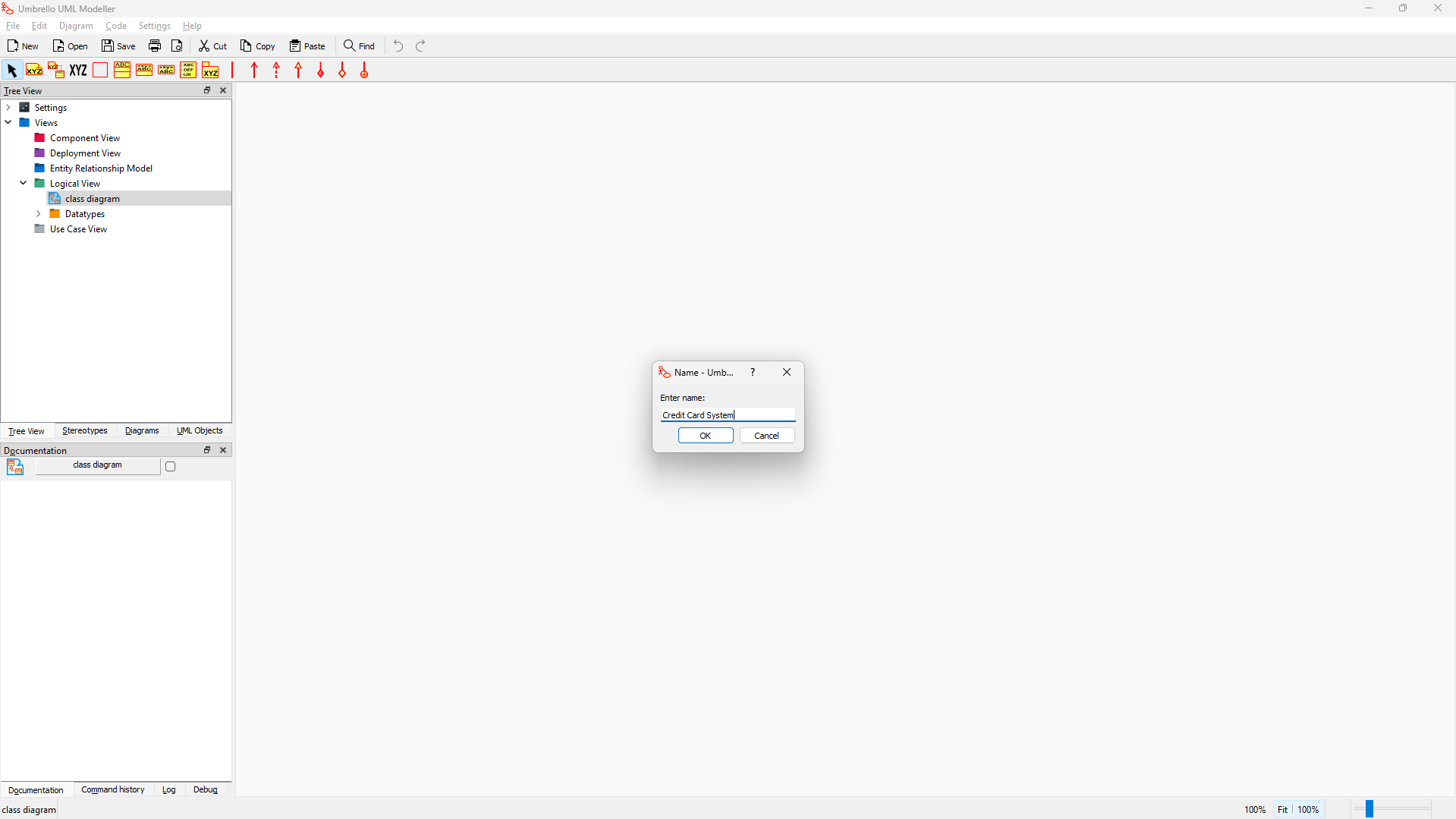
- Click File → New
- Name project "Credit Card System"
- Select "Class Diagram" from available options
Tip: Use meaningful project names that reflect your system's purpose
6. Building the Class Structure
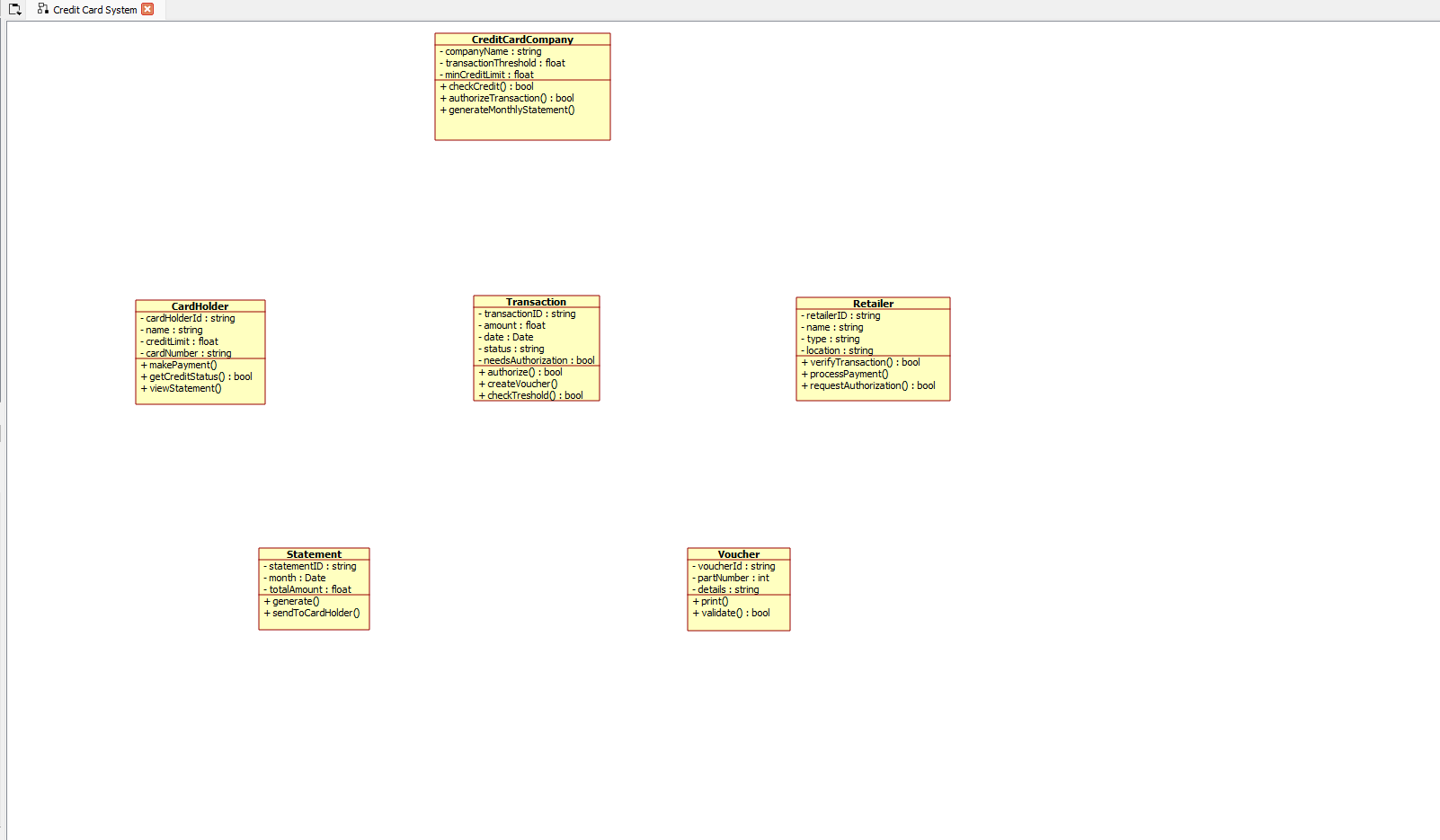
Creating the CreditCardCompany Class
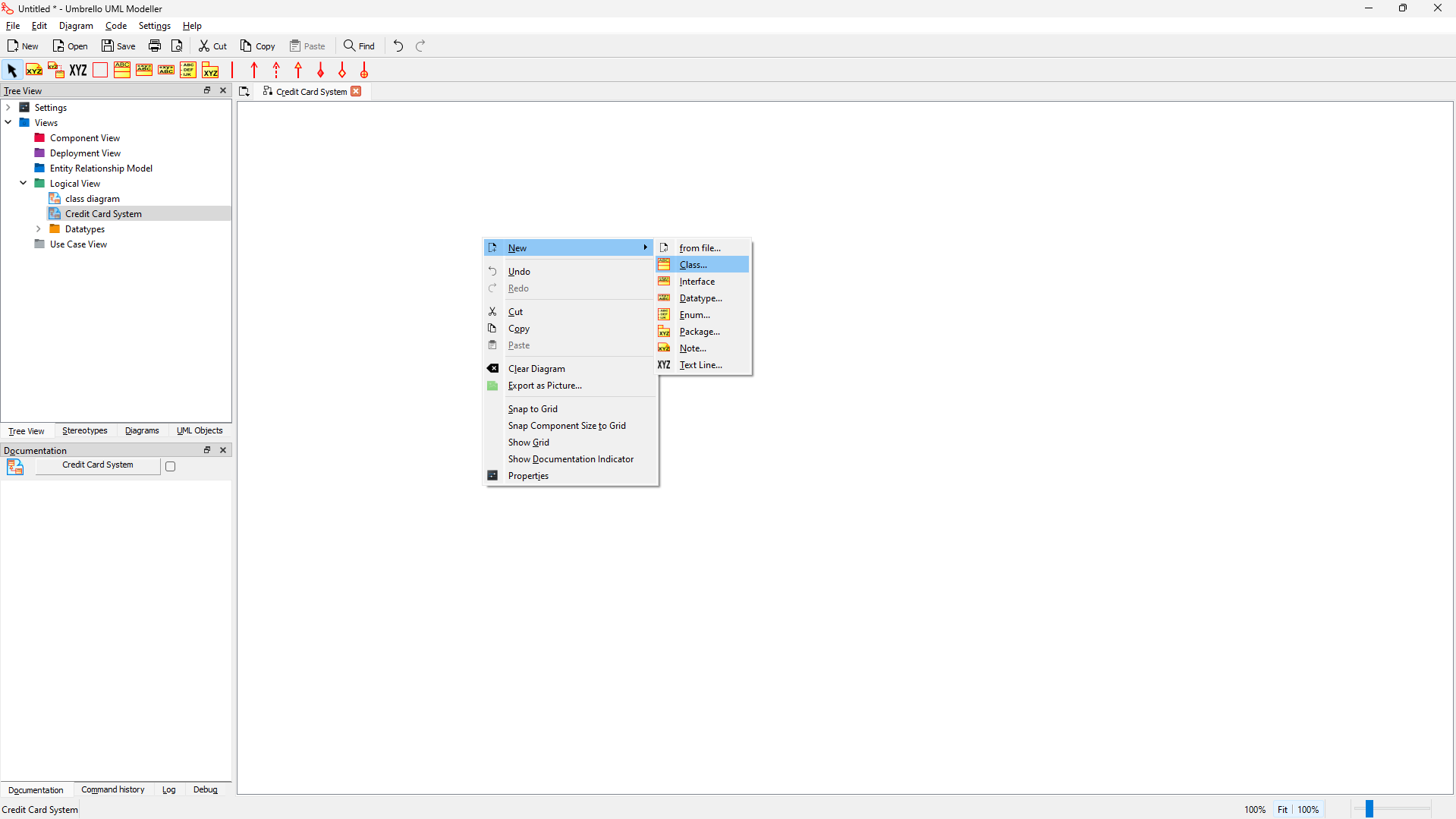
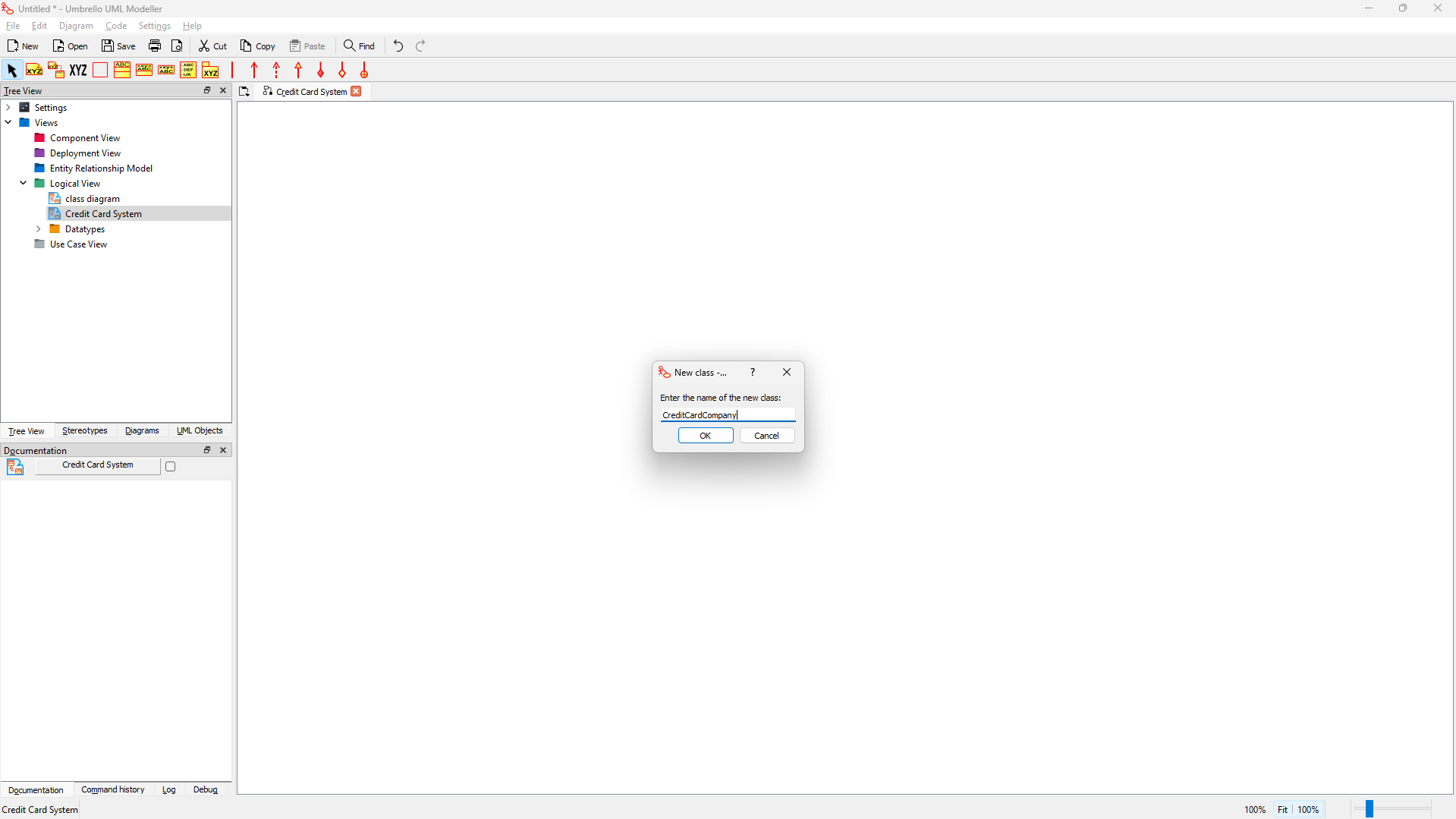
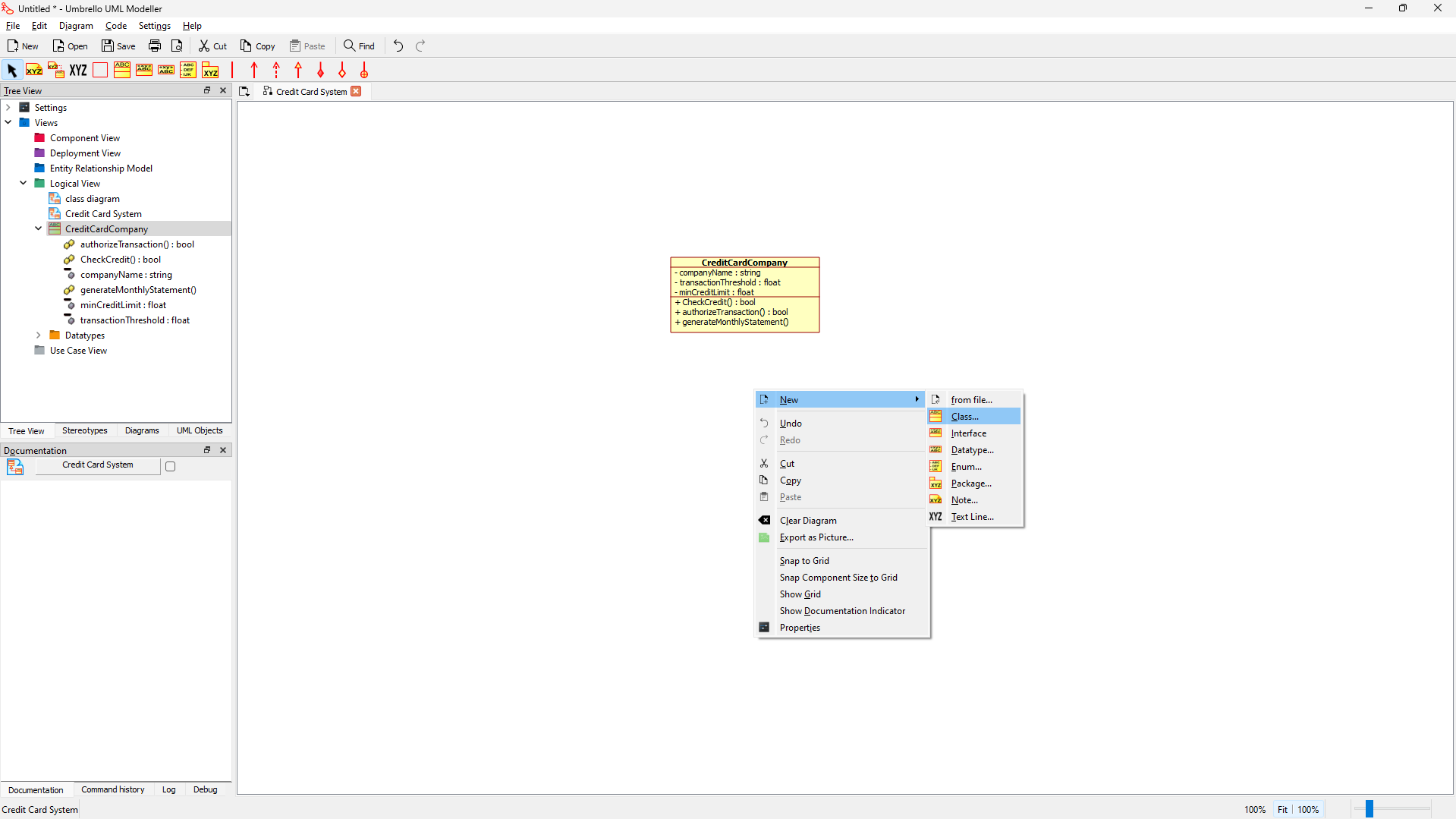
- Add Class
- Right Click your mouse
- From New --> Class
- Name it "CreditCardCompany"
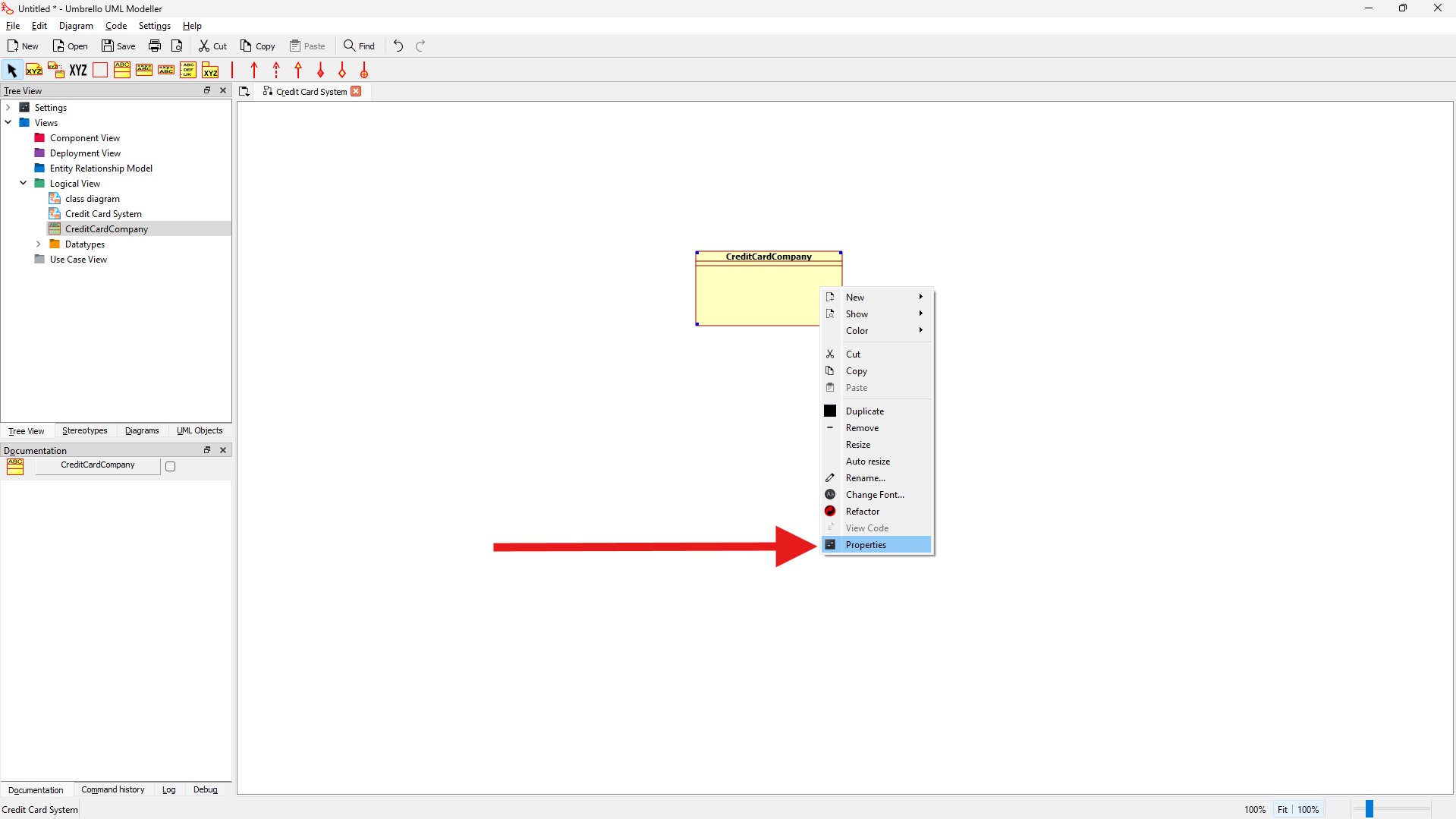
- Configure Class Properties
- Right-click on the class → Properties
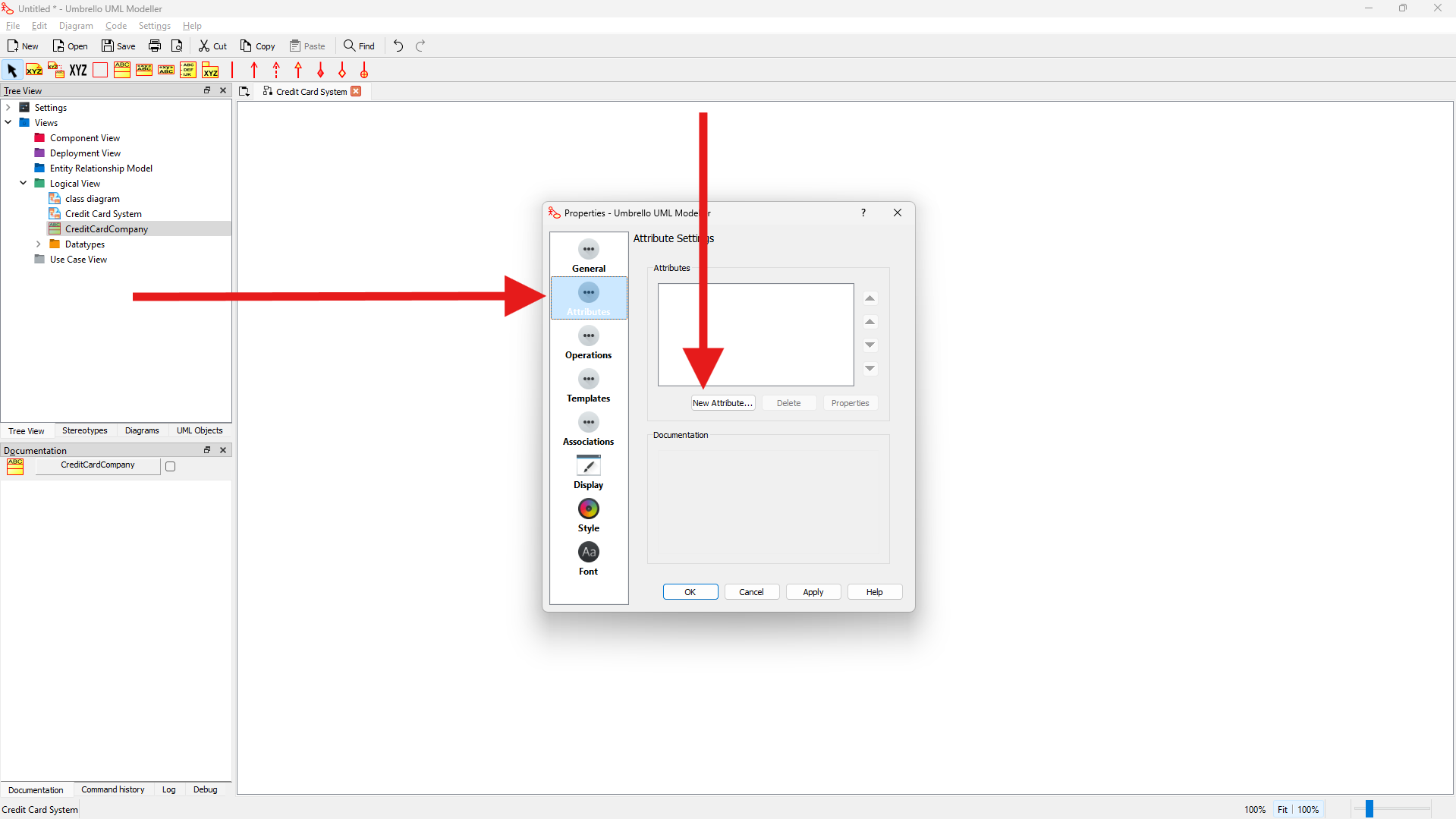
-
Add Attributes
- companyName: string (private)
- transactionThreshold: float (private)
- minCreditLimit: float (private)
For each attribute:
- Click "New Attribute"
- Set name, type, visibility
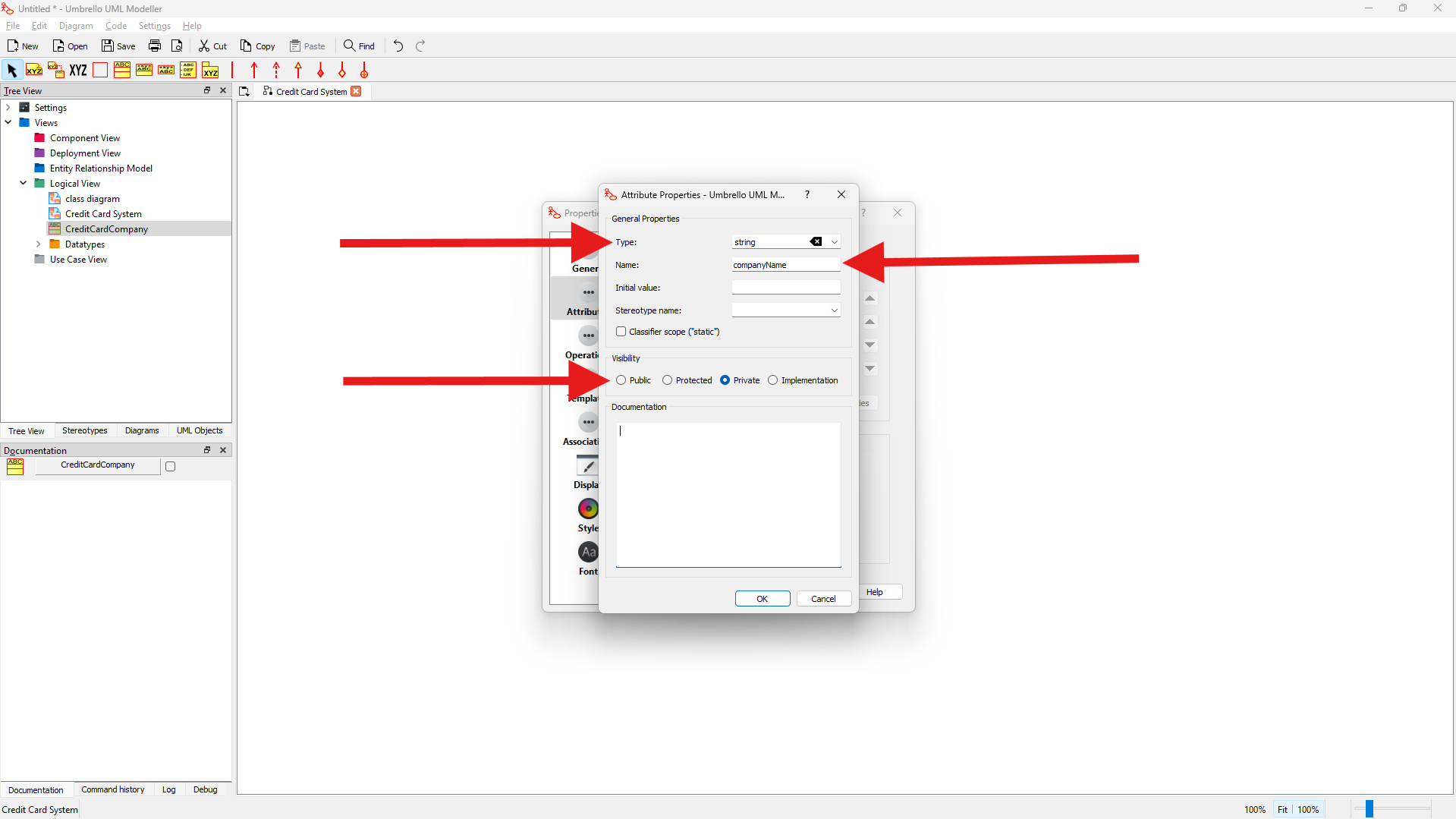
Important: Choose appropriate visibility modifiers based on encapsulation principles
-
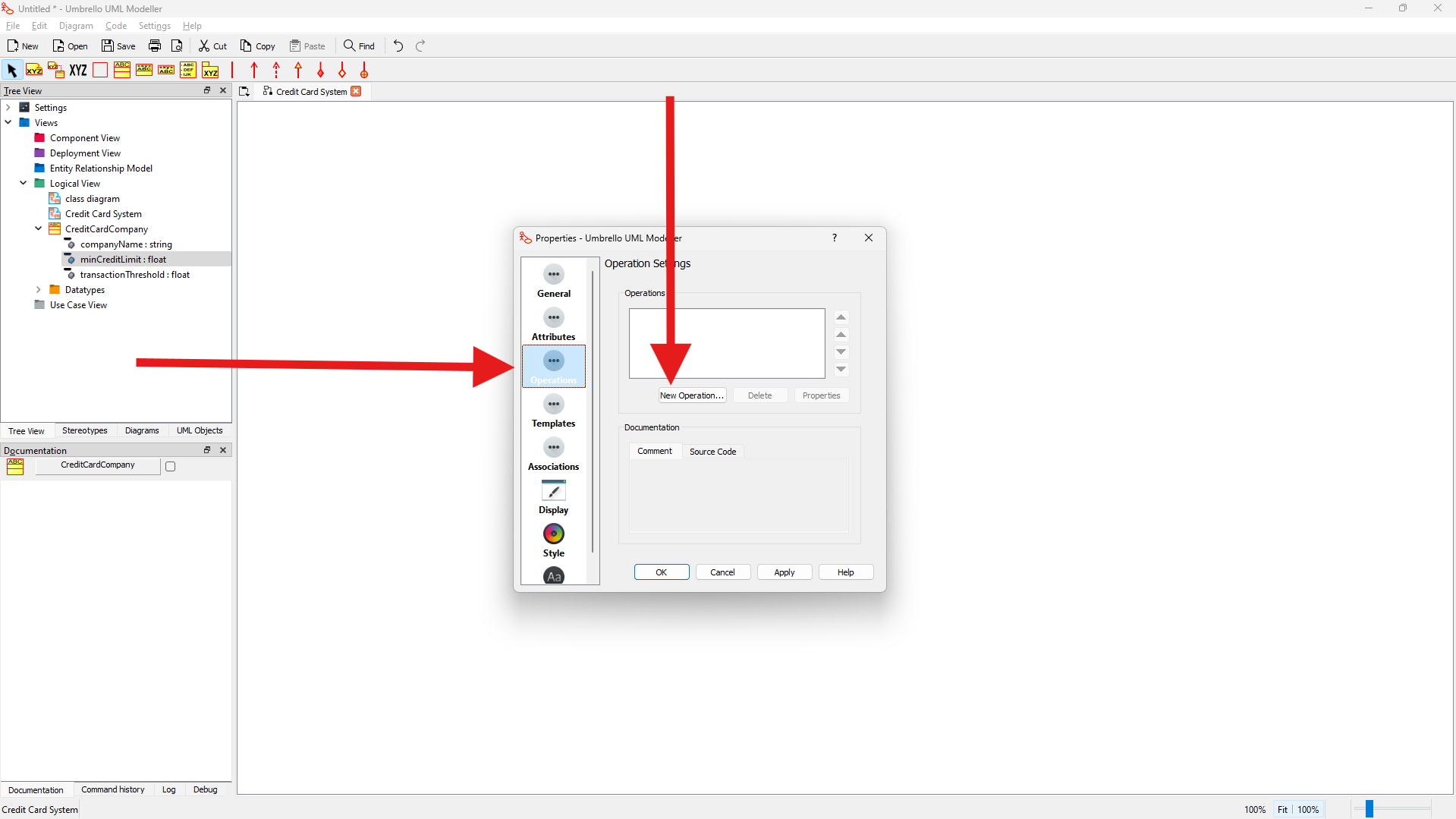
Add Operations
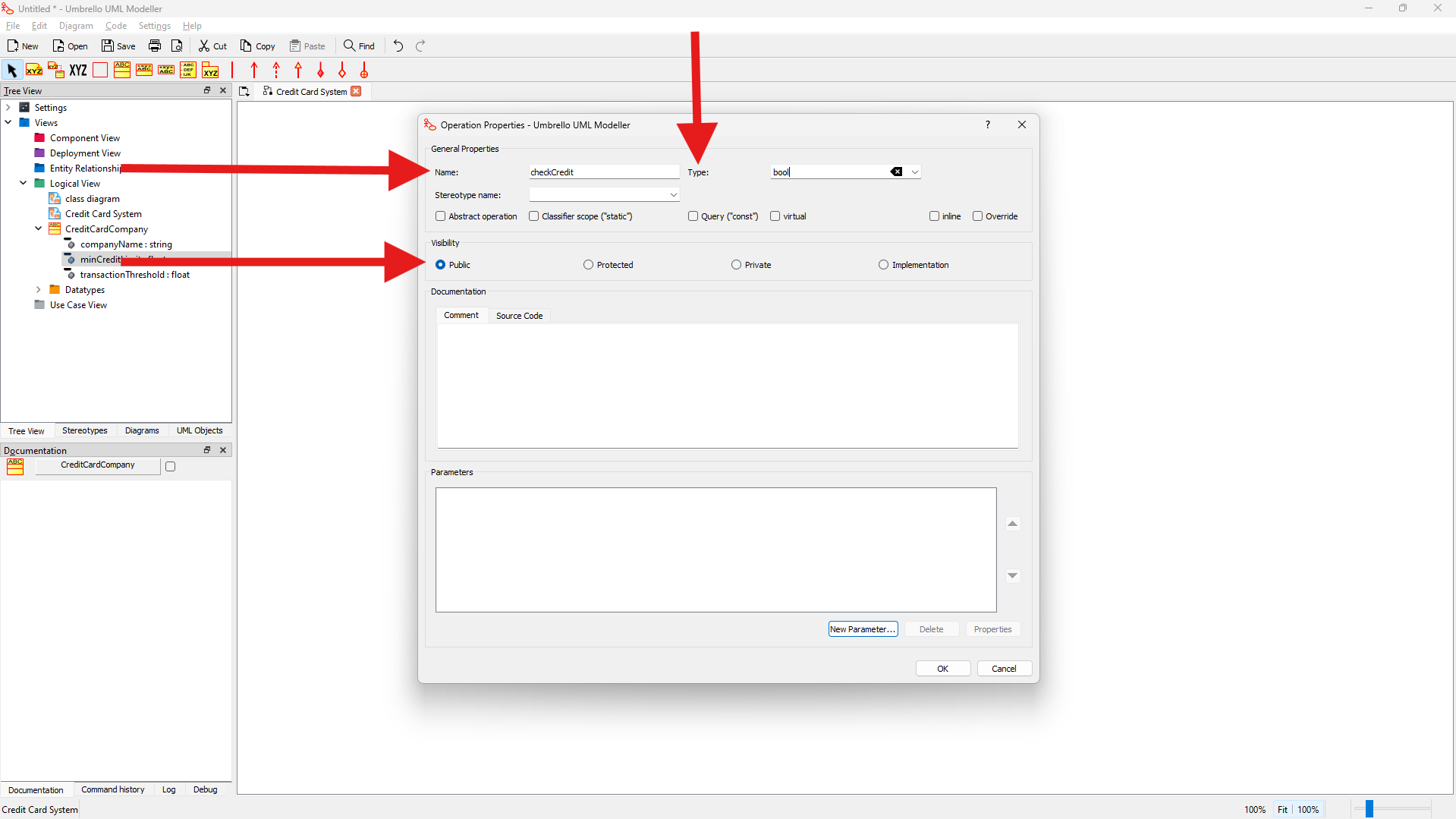
+ checkCredit(): boolean
+ authorizeTransaction(): boolean
+ generateMonthlyStatement()
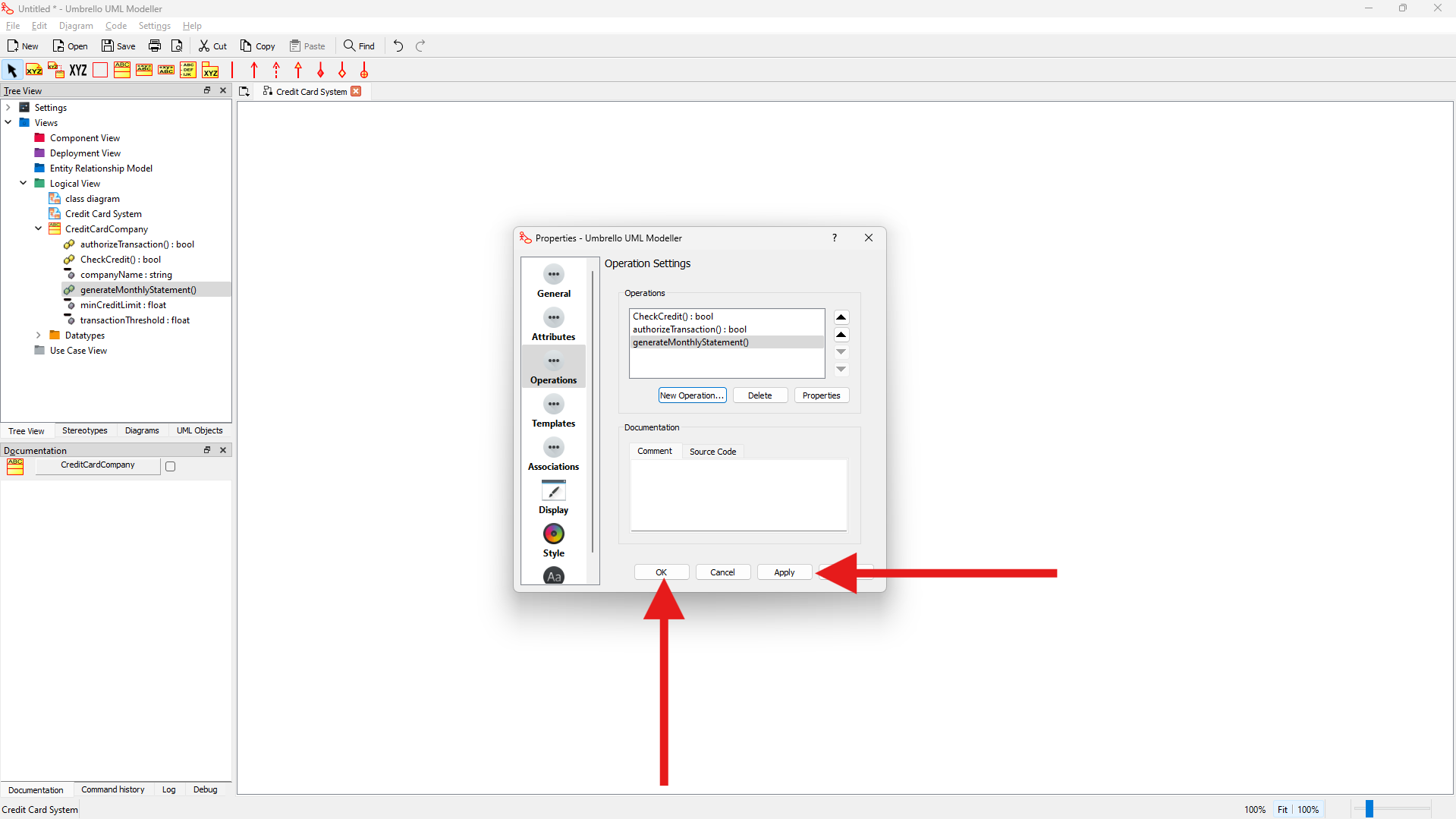
For each operation:
- Click "New Operation"
- Set name, return type, visibility
- Click Apply and then OK
Creating the CardHolder Class
-
Add Class Structure
Class: CardHolder
Attributes:
- cardHolderId: string
- name: string
- creditLimit: float
- cardNumber: string

Operations:
+ makePayment()
+ getCreditStatus(): boolean
+ viewStatement() -
Configure Class Properties
- Set proper visibility for attributes
- Add validation methods
- Configure relationships
Creating the Transaction Class
- Define Transaction Structure
Class: Transaction
Attributes:
- transactionId: string
- amount: float
- date: Date
- status: string
- needsAuthorization: boolean

Operations:
+ authorize(): boolean
+ createVoucher()
+ checkThreshold(): boolean
7. Implementing Relationships
Creating Class Relationships
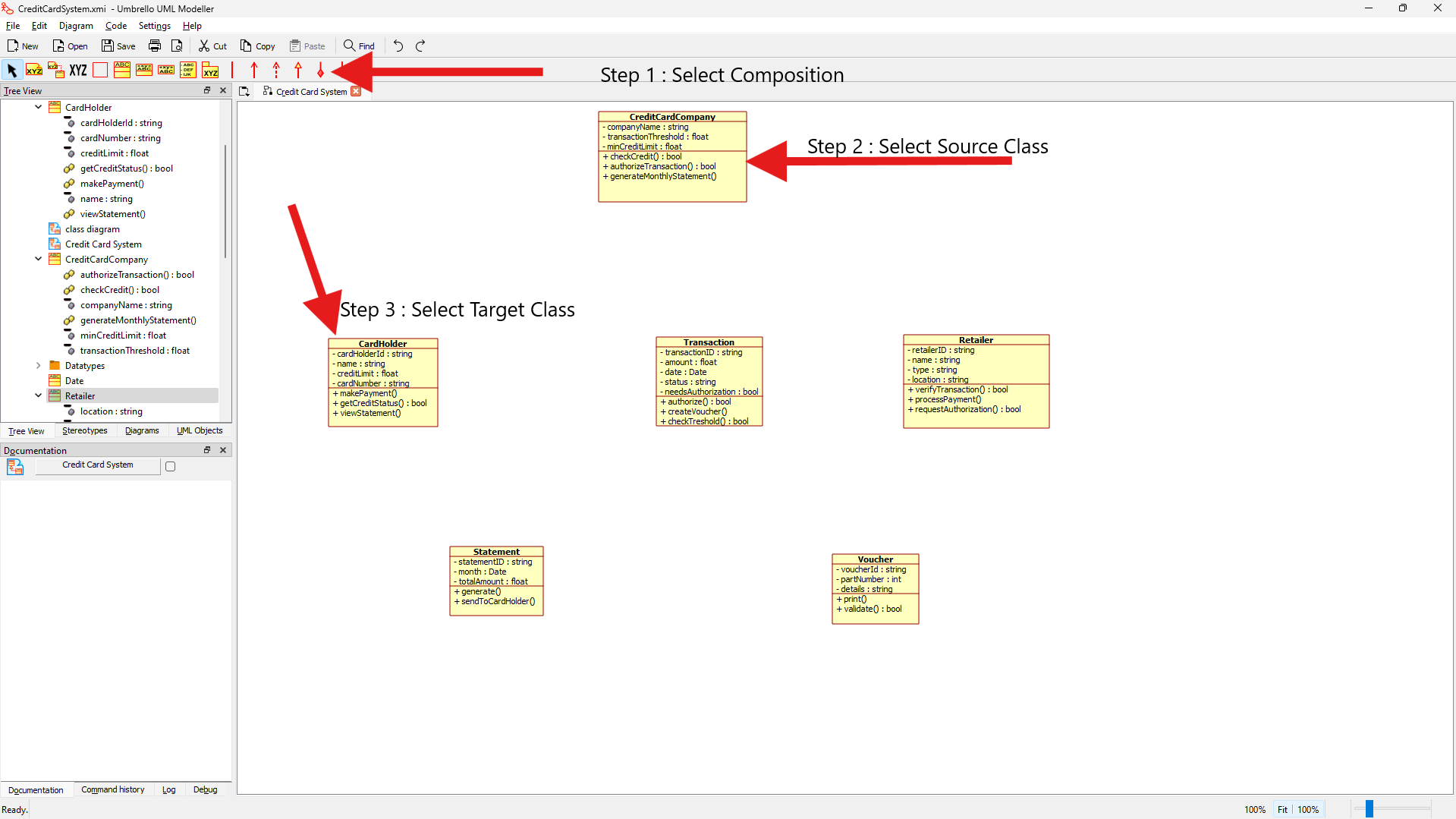
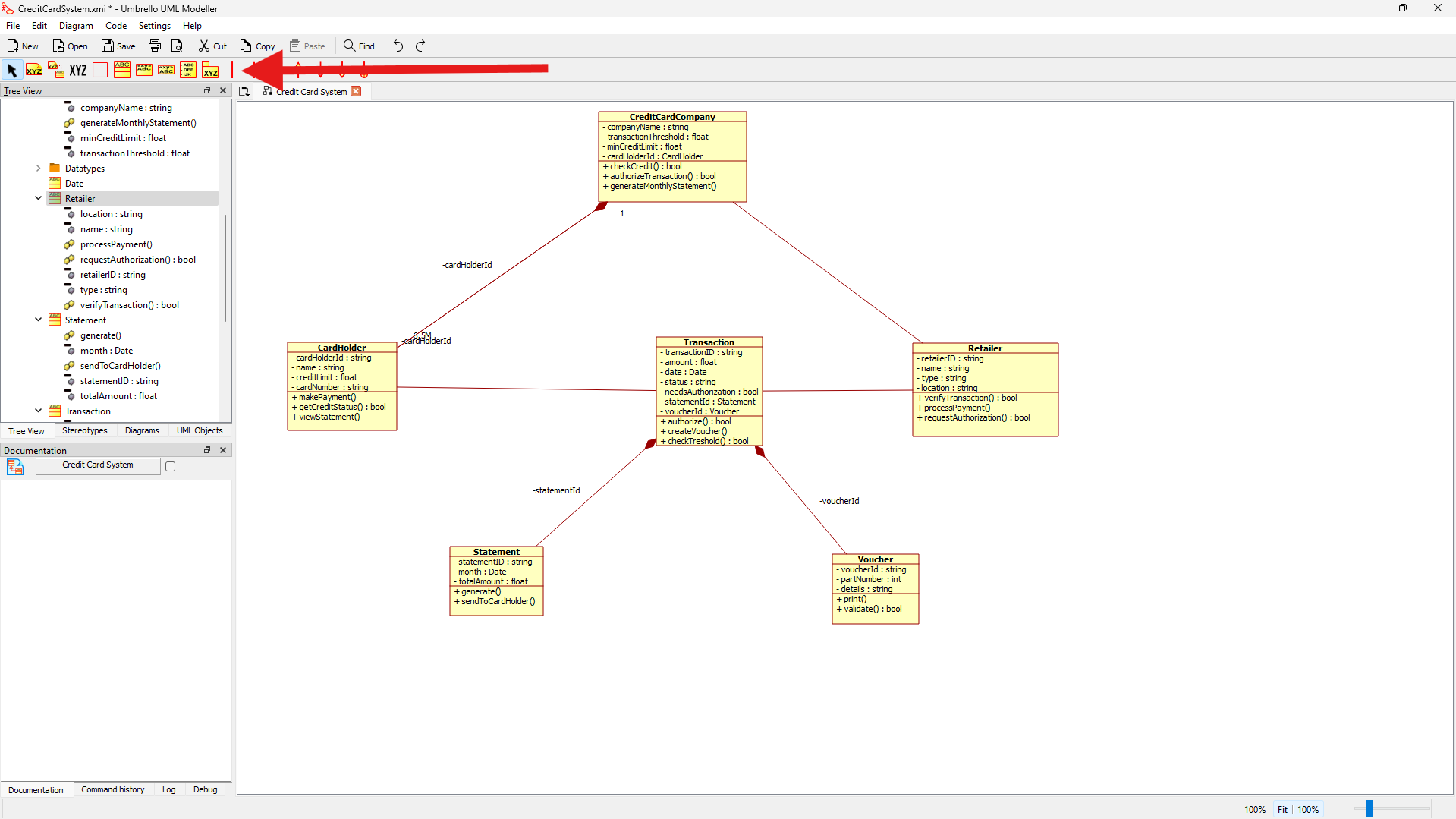
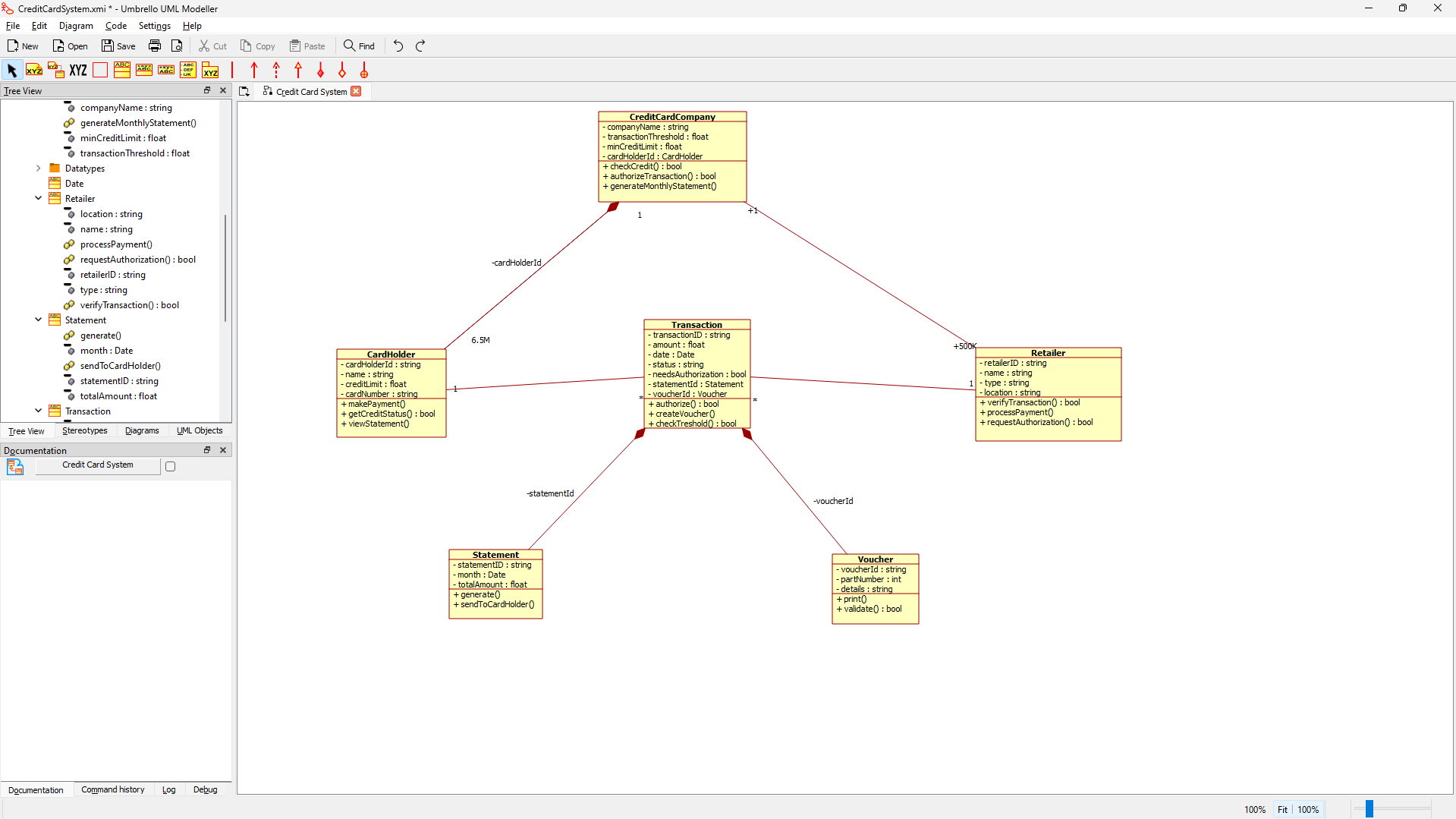
- Composition Relationships
- CreditCardCompany to CardHolder (1 to 6.5M)
- Select composition tool
- Click source class
- Drag to target class
- Configure multiplicity
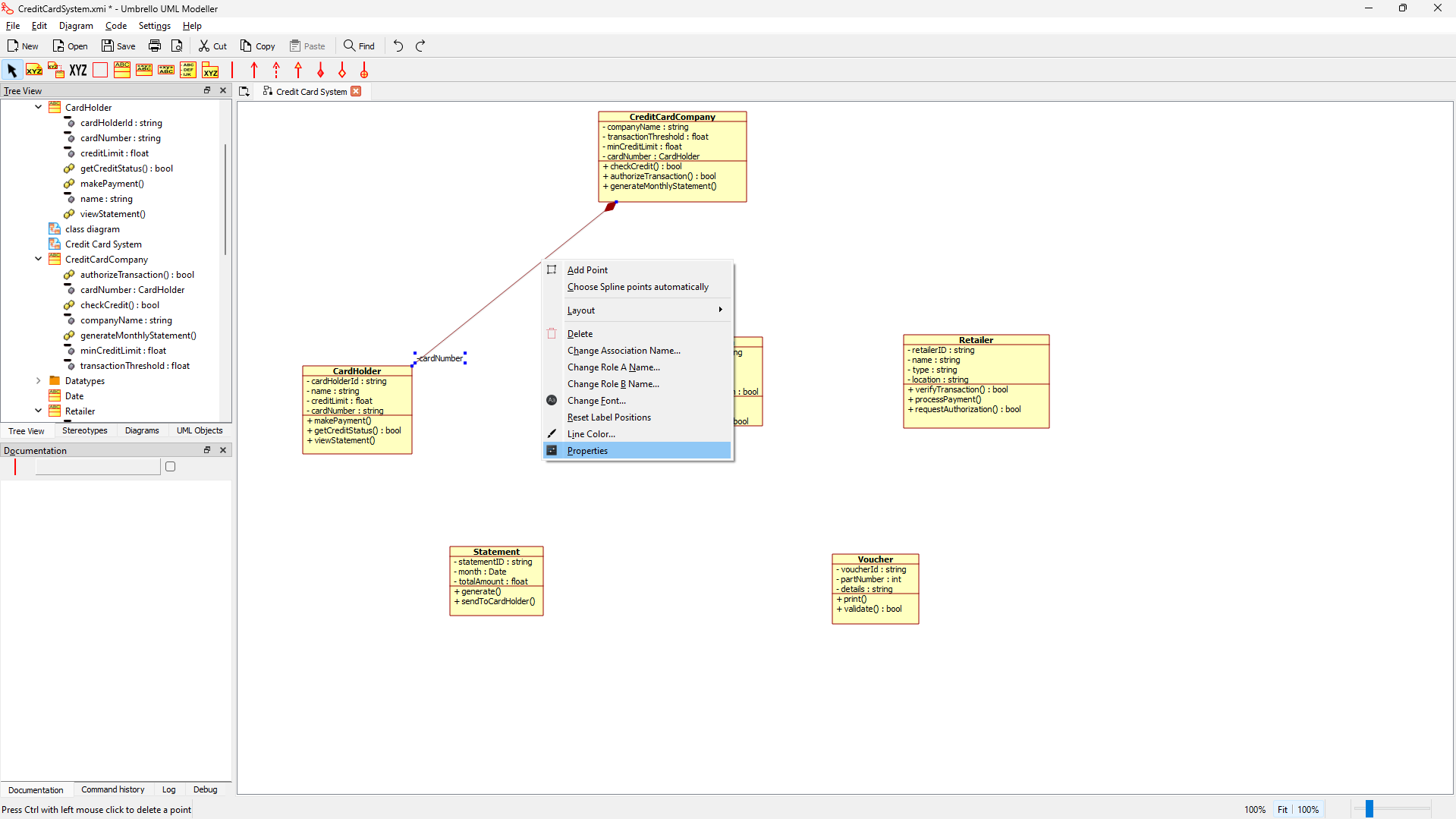
 2. Setting Multiplicities
- Click on relationship line
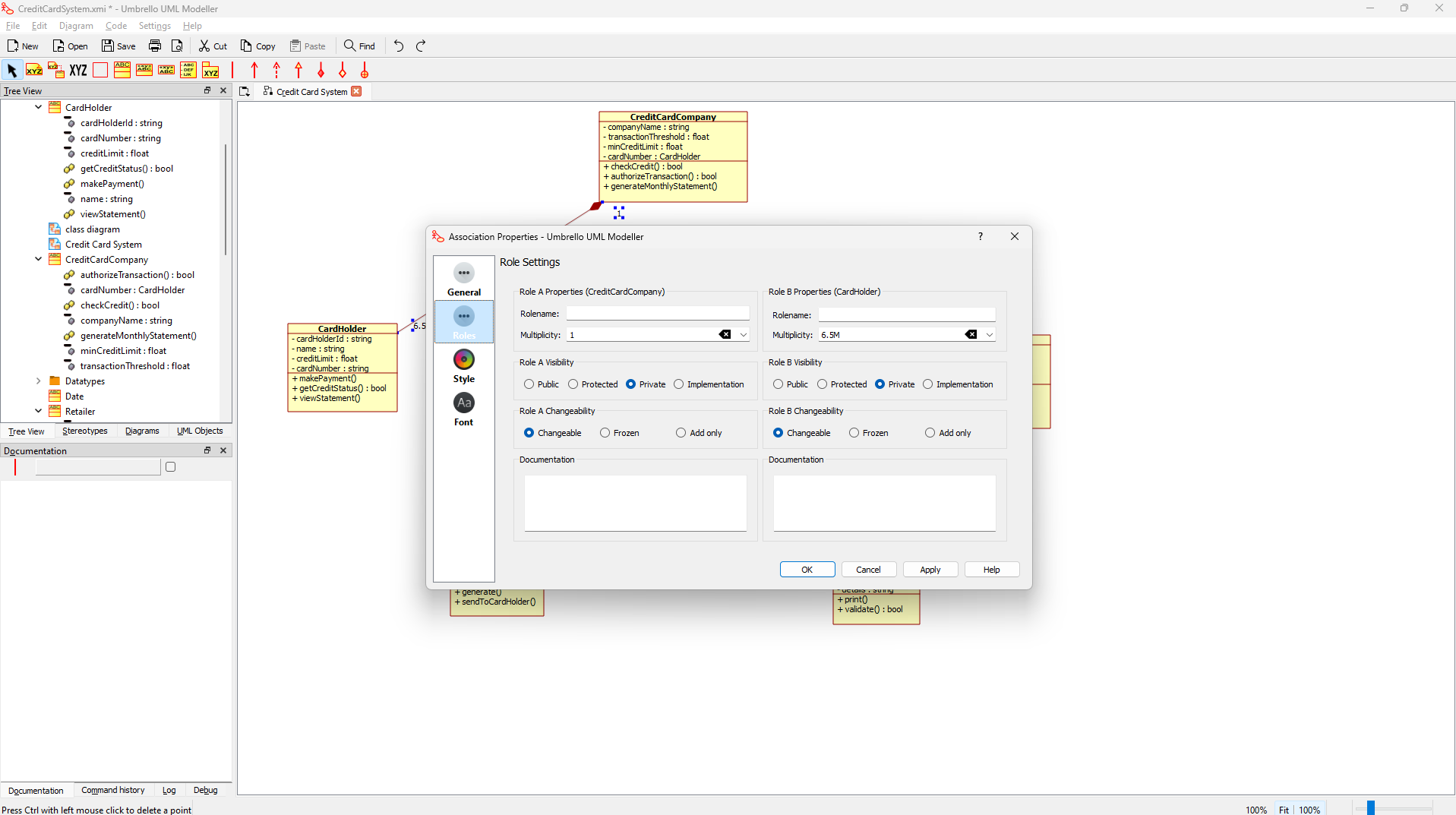
- Open properties
- Set source and target multiplicities
- Configure navigation
- Add More Association and Multiplicity
Saving and Exporting
Saving Your Work
- Go to File → Save As
- Choose a location and filename
- Select .xmi format
Printing or Exporting
- Go to File → Print or Export
- Select desired format and options